1
1. Prepare Arduino IDE and Libraries
Install the Arduino IDE if you haven't already. Add ESP32 board support via the Boards Manager (search for 'esp32'). Install the Blynk library from the Library Manager (search for 'Blynk').
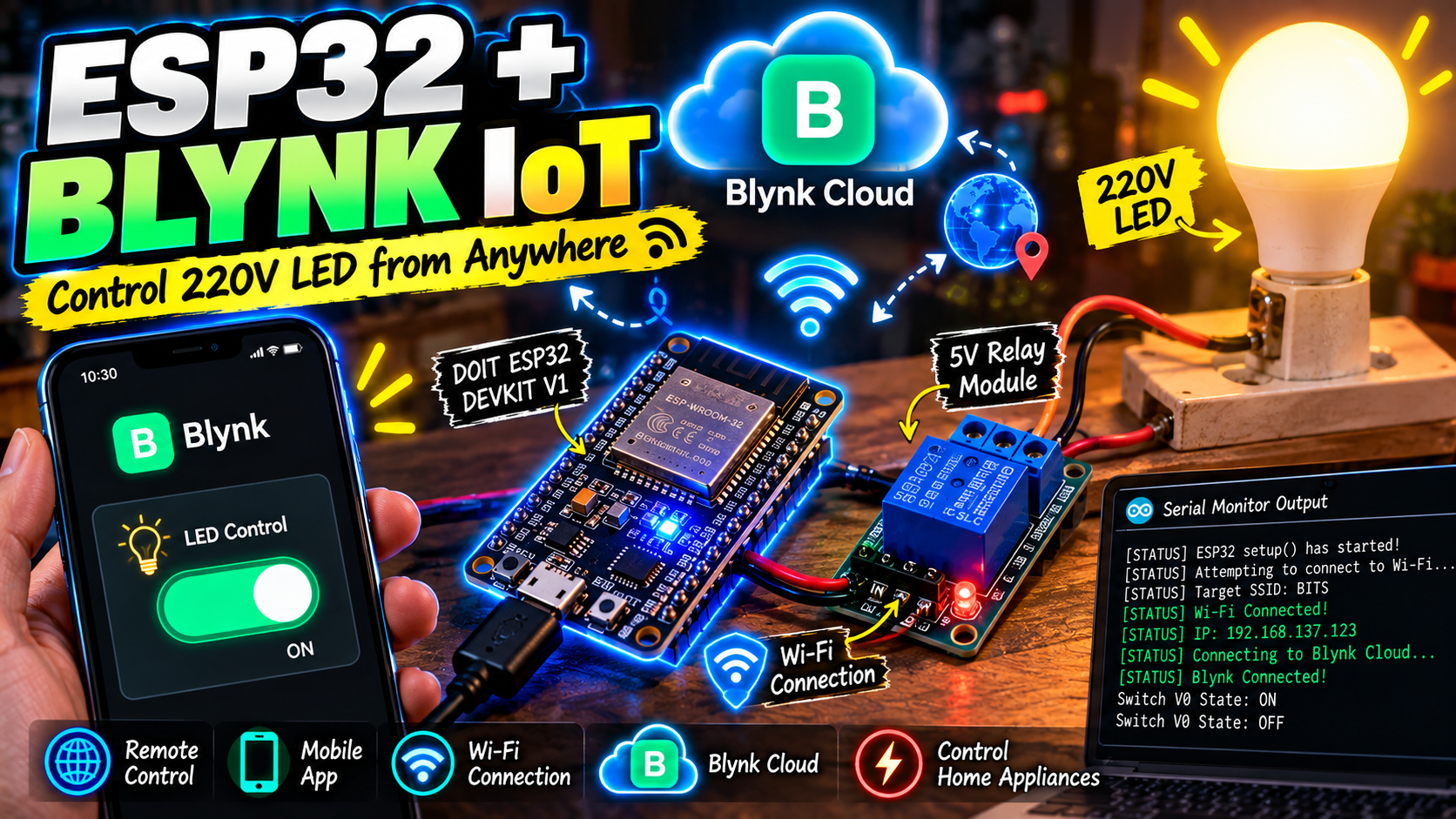
A Wi-Fi-enabled home automation switch using the ESP32 DevKit V1 and Blynk IoT cloud to safely control high-voltage AC appliances from a mobile device.
This project involves potentially lethal mains voltage. The ESP32 is a low-voltage device, and its GPIO must never be connected directly to 220V AC. Use a correctly rated relay, suitable isolation, a secure enclosure and appropriate electrical protection. Mains-side assembly and verification must be handled by a qualified electrician.
Arduino IDE configured with the ESP32 board package and Blynk library, Registered Blynk.Cloud developer account and mobile application, Basic understanding of AC mains electrical safety, fusing, and isolation
This project implements an IoT power-switching node using an ESP32 DevKit V1 connected to the Blynk 2.0 Cloud platform. It enables real-time remote switching of AC mains loads (such as an LED bulb) via a smartphone interface.
The signal and power chain functions as follows:
[Blynk Mobile App]
       │ (HTTPS/WebSockets)
       ▼
[Blynk Cloud Platform]
       │ (Wi-Fi 802.11 b/g/n @ 2.4 GHz)
       ▼
[ESP32 DevKit V1]
       │ (3.3V / 5V Logic GPIO)
       ▼
[Optoisolated Relay Module]
       │ (Mechanical Dry Contacts: COM & NO)
       ▼
[220V AC Mains Load (Bulb)]
V0 configured as an integer datastream (0 or 1). Actuating the mobile switch triggers an event pushed by Blynk Cloud to the ESP32.BLYNK_WRITE(V0) macro. The incoming parameter integer (param.asInt()) is evaluated to drive the target output GPIO.Adds all 11 parts to your Amazon.in cart. Check items before you pay.
Adds all 11 parts to your Amazon.in cart. Check items before you pay.
Add all to Amazon cartFollow the exact circuit connections and pinouts for your board.
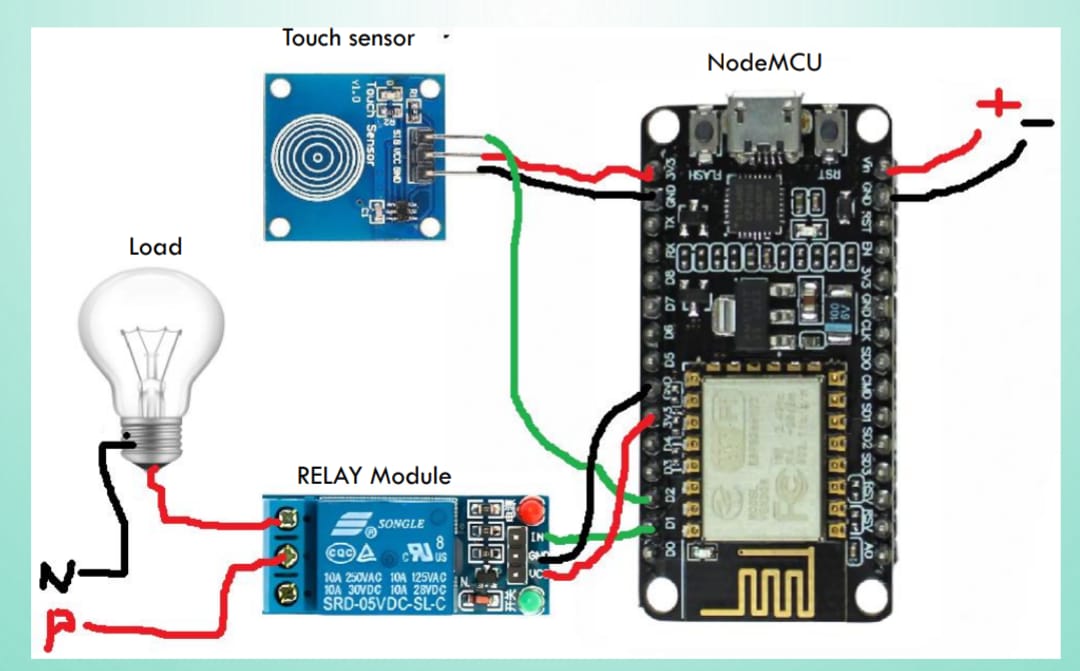
| From Pin / Component | To Pin / Board | Connection Note |
|---|---|---|
| ESP32 5V (or 3.3V) | Relay Module VCC | Power for the relay module. Use 5V if available and relay is 5V, otherwise 3.3V. |
| ESP32 GND | Relay Module GND | Common ground connection. |
| ESP32 GPIO 26 | Relay Module IN | Control signal for the relay. |
| ESP32 5V (or 3.3V) | Touch Sensor VCC | Power for the touch sensor. |
| ESP32 GND | Touch Sensor GND | Common ground connection. |
| ESP32 GPIO 27 | Touch Sensor OUT | Input signal from the touch sensor. |
| AC Mains Live | Relay Module COM | Connect the Live wire from mains to the relay's common terminal. |
| Relay Module NO | AC Load Live Input | Connect the Normally Open terminal to the Live input of your appliance. |
| AC Mains Neutral | AC Load Neutral Input | Connect the Neutral wire directly to the appliance. |
| From Pin / Component | To Pin / Board | Connection Note |
|---|---|---|
| 5V | Relay Module VCC | Powers the relay module |
| GND | Relay Module GND | Common ground for relay |
| GPIO 26 | Relay Module IN | Controls the relay (relayPin in code) |
| 5V | Touch Sensor VCC | Powers the touch sensor module |
| GND | Touch Sensor GND | Common ground for touch sensor |
| GPIO 27 | Touch Sensor OUT | Reads touch input (touchPin in code) |
| From Pin / Component | To Pin / Board | Connection Note |
|---|---|---|
| Live (Hot) | Relay Module COM | Input Live wire to relay common contact |
| Neutral | AC Load Neutral Input | Direct Neutral connection to appliance |
| From Pin / Component | To Pin / Board | Connection Note |
|---|---|---|
| NO (Normally Open) | AC Load Live Input | Switched Live output to appliance |
Install the Arduino IDE if you haven't already. Add ESP32 board support via the Boards Manager (search for 'esp32'). Install the Blynk library from the Library Manager (search for 'Blynk').
Open the provided .ino sketch in Arduino IDE. Update BLYNK_TEMPLATE_ID, BLYNK_TEMPLATE_NAME, BLYNK_AUTH_TOKEN, ssid, and pass with your Wi-Fi and Blynk project details. Crucially, change the relayPin to GPIO 26 and touchPin to GPIO 27 for ESP32 compatibility, and update includes to WiFi.h and BlynkSimpleEsp32.h. Set RELAY_ACTIVE_LOW based on your relay module's specification.
Connect the ESP32 to the relay module and touch sensor. Connect ESP32's 3.3V or 5V to the relay's VCC and touch sensor's VCC. Connect ESP32's GND to the relay's GND and touch sensor's GND. Connect ESP32 GPIO 26 to the relay's IN pin. Connect ESP32 GPIO 27 to the touch sensor's OUT pin.
Connect your ESP32 to your computer via a Micro USB cable. Select the correct COM port in the Arduino IDE and upload the sketch. Open the Serial Monitor (115200 baud) to observe connection status and relay actions. Test the touch sensor and the Blynk app switch (V0) to ensure the relay responds correctly.
ENSURE MAINS POWER IS DISCONNECTED BEFORE WIRING. Connect the Live (Hot) wire from your AC mains supply to the COM (Common) terminal of the relay. Connect the NO (Normally Open) terminal of the relay to the Live input of your AC load (e.g., an LED bulb holder). Connect the Neutral wire from your AC mains directly to the Neutral input of your AC load. Insulate all exposed AC connections thoroughly. Double-check all wiring before applying power.
Install the Arduino IDE, add ESP32 board support via the Boards Manager, and install the Blynk library from the Library Manager. Ensure you select 'ESP32 Dev Module' from the Tools > Board menu.
Open the provided .ino sketch. Replace YOUR_WIFI_SSID, YOUR_WIFI_PASSWORD, YOUR_TEMPLATE_ID, YOUR_TEMPLATE_NAME, and YOUR_NEW_BLYNK_AUTH_TOKEN with your actual Wi-Fi credentials and a newly generated Blynk device token. Adjust RELAY_ACTIVE_LOW to true or false based on your relay module's trigger logic (most common are active-LOW).
Connect the ESP32 DevKit V1 to the 1-channel relay module and the capacitive touch sensor module using jumper wires. Ensure all VCC and GND connections are correct before proceeding.
DANGER: Ensure ALL power is disconnected from the mains outlet and your circuit. Carefully wire the AC mains Live (Hot) wire to the COM terminal of the relay. Connect the NO (Normally Open) terminal of the relay to the Live input of your AC load (e.g., an LED bulb holder). Connect the AC mains Neutral wire directly to the Neutral input of your AC load. Insulate all exposed high-voltage connections thoroughly and place the circuit in a protective enclosure. Only then, plug in the mains cable and test.
A Wi-Fi-enabled home automation switch using the ESP32 DevKit V1 and Blynk IoT cloud to safely control high-voltage AC appliances from a mobile device.
This project involves potentially lethal mains voltage. The ESP32 is a low-voltage device, and its GPIO must never be connected directly to 220V AC. Use a correctly rated relay, suitable isolation, a secure enclosure and appropriate electrical protection. Mains-side assembly and verification must be handled by a qualified electrician.
Arduino IDE configured with the ESP32 board package and Blynk library, Registered Blynk.Cloud developer account and mobile application, Basic understanding of AC mains electrical safety, fusing, and isolation
This project implements an IoT power-switching node using an ESP32 DevKit V1 connected to the Blynk 2.0 Cloud platform. It enables real-time remote switching of AC mains loads (such as an LED bulb) via a smartphone interface.
The signal and power chain functions as follows:
[Blynk Mobile App]
       │ (HTTPS/WebSockets)
       ▼
[Blynk Cloud Platform]
       │ (Wi-Fi 802.11 b/g/n @ 2.4 GHz)
       ▼
[ESP32 DevKit V1]
       │ (3.3V / 5V Logic GPIO)
       ▼
[Optoisolated Relay Module]
       │ (Mechanical Dry Contacts: COM & NO)
       ▼
[220V AC Mains Load (Bulb)]
V0 configured as an integer datastream (0 or 1). Actuating the mobile switch triggers an event pushed by Blynk Cloud to the ESP32.BLYNK_WRITE(V0) macro. The incoming parameter integer (param.asInt()) is evaluated to drive the target output GPIO.Adds all 11 parts to your Amazon.in cart. Check items before you pay.
Adds all 11 parts to your Amazon.in cart. Check items before you pay.
Add all to Amazon cartInstall the Arduino IDE if you haven't already. Add ESP32 board support via the Boards Manager (search for 'esp32'). Install the Blynk library from the Library Manager (search for 'Blynk').
Open the provided .ino sketch in Arduino IDE. Update BLYNK_TEMPLATE_ID, BLYNK_TEMPLATE_NAME, BLYNK_AUTH_TOKEN, ssid, and pass with your Wi-Fi and Blynk project details. Crucially, change the relayPin to GPIO 26 and touchPin to GPIO 27 for ESP32 compatibility, and update includes to WiFi.h and BlynkSimpleEsp32.h. Set RELAY_ACTIVE_LOW based on your relay module's specification.
Connect the ESP32 to the relay module and touch sensor. Connect ESP32's 3.3V or 5V to the relay's VCC and touch sensor's VCC. Connect ESP32's GND to the relay's GND and touch sensor's GND. Connect ESP32 GPIO 26 to the relay's IN pin. Connect ESP32 GPIO 27 to the touch sensor's OUT pin.
Connect your ESP32 to your computer via a Micro USB cable. Select the correct COM port in the Arduino IDE and upload the sketch. Open the Serial Monitor (115200 baud) to observe connection status and relay actions. Test the touch sensor and the Blynk app switch (V0) to ensure the relay responds correctly.
ENSURE MAINS POWER IS DISCONNECTED BEFORE WIRING. Connect the Live (Hot) wire from your AC mains supply to the COM (Common) terminal of the relay. Connect the NO (Normally Open) terminal of the relay to the Live input of your AC load (e.g., an LED bulb holder). Connect the Neutral wire from your AC mains directly to the Neutral input of your AC load. Insulate all exposed AC connections thoroughly. Double-check all wiring before applying power.
Install the Arduino IDE, add ESP32 board support via the Boards Manager, and install the Blynk library from the Library Manager. Ensure you select 'ESP32 Dev Module' from the Tools > Board menu.
Open the provided .ino sketch. Replace YOUR_WIFI_SSID, YOUR_WIFI_PASSWORD, YOUR_TEMPLATE_ID, YOUR_TEMPLATE_NAME, and YOUR_NEW_BLYNK_AUTH_TOKEN with your actual Wi-Fi credentials and a newly generated Blynk device token. Adjust RELAY_ACTIVE_LOW to true or false based on your relay module's trigger logic (most common are active-LOW).
Connect the ESP32 DevKit V1 to the 1-channel relay module and the capacitive touch sensor module using jumper wires. Ensure all VCC and GND connections are correct before proceeding.
DANGER: Ensure ALL power is disconnected from the mains outlet and your circuit. Carefully wire the AC mains Live (Hot) wire to the COM terminal of the relay. Connect the NO (Normally Open) terminal of the relay to the Live input of your AC load (e.g., an LED bulb holder). Connect the AC mains Neutral wire directly to the Neutral input of your AC load. Insulate all exposed high-voltage connections thoroughly and place the circuit in a protective enclosure. Only then, plug in the mains cable and test.