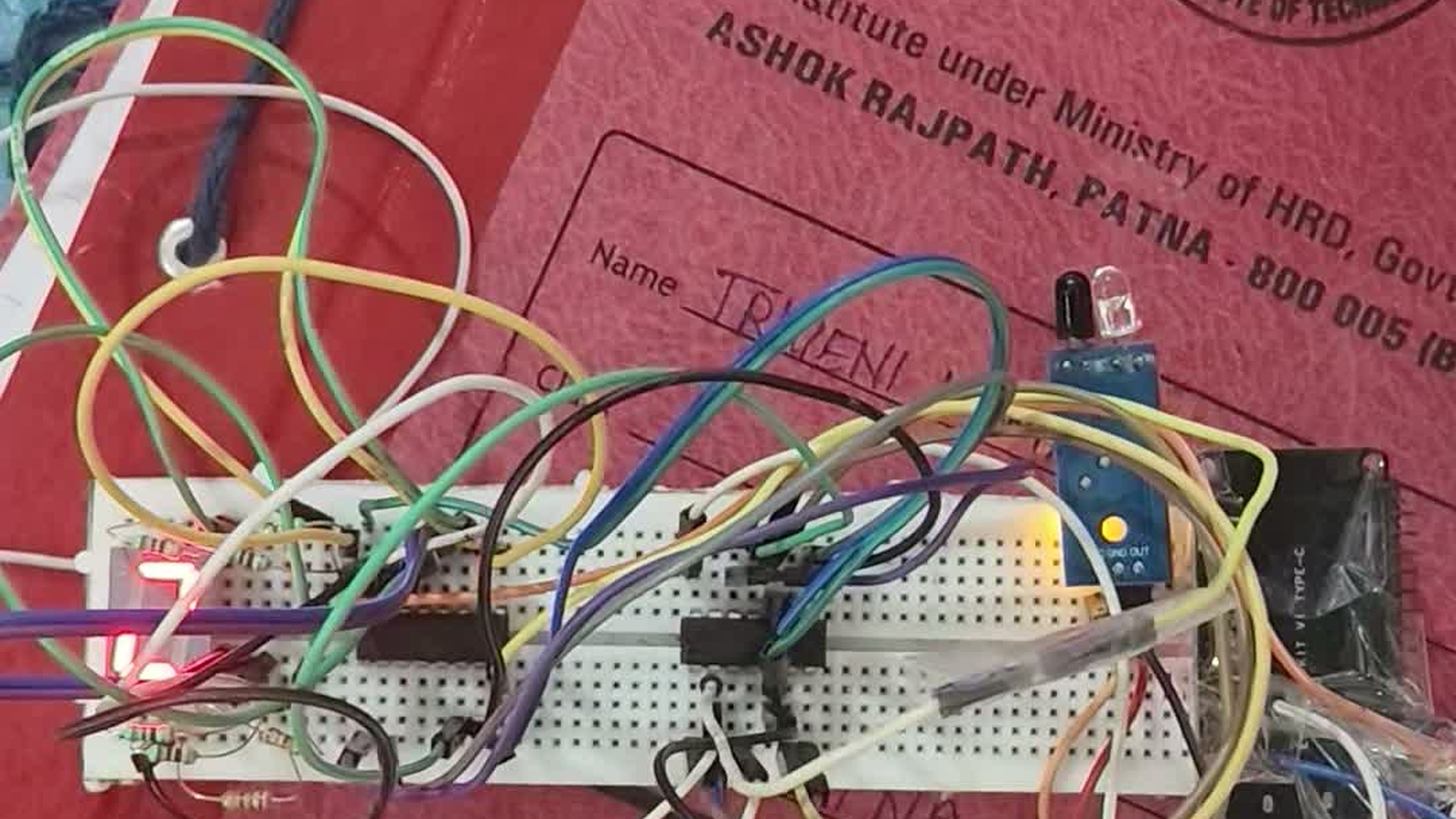
Digital Object Counter Using 74LS90, 7447, IR Sensor & ESP32/ESP8266
Video
Free
View packReset the Microsoft Office LTSC 2024 activation grace period using built-in Windows administrative utilities and VBScript command-line tools.
Soldering basic wires, Arduino IDE installed on computer
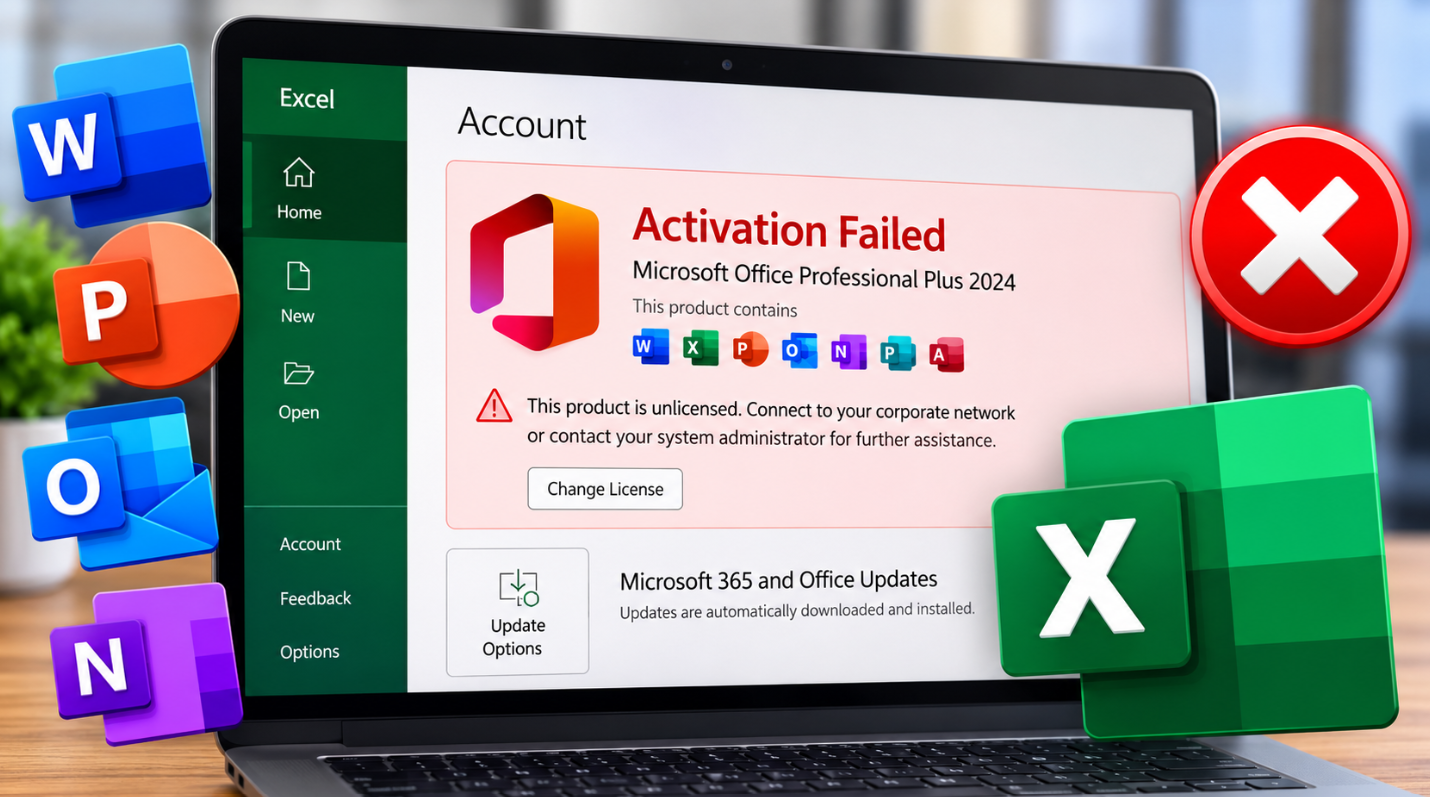
When deploying Microsoft Office LTSC Professional Plus 2024 (such as Word, Excel, or PowerPoint), the software may trigger a "Product Activation Failed" or "Activation Required" state. When this occurs, the Microsoft Office Activation Wizard interrupts normal workflow with a notification stating that the product is unlicensed or could not be activated using the Key Management Service (KMS), corresponding to error code 0xC004F056.
Go to the Office16 foldercd C:\Program Files\Microsoft Office\Office16
Check Office license statuscscript ospp.vbs /dstatus
Office Rearm commandcscript ospp.vbs /rearm:YOUR-SKU-ID**
Replace YOUR-SKU-ID with the SKU ID shown by the /dstatus command.
In this guide, we walk through two built-in system methods to resolve the activation prompt by resetting the product's activation grace period. Our first approach utilizes the native OSPPREARM.EXE executable located directly inside the Office 16 installation directory. When direct execution does not clear the error flag, our second, more reliable approach uses an elevated Command Prompt to query the Office Software Protection Platform script (ospp.vbs), extract the specific installation SKU ID, and force a targeted rearm command.
What makes this approach notable is that it relies entirely on native Microsoft administrative scripts (OSPPREARM.EXE and ospp.vbs) already present in the local installation folder. It is important to note that rearming does not permanently activate the suite or bypass licensing mechanisms; rather, it cleanly resets the supported activation grace period so you can access your workspace and tools without interruption.
Reset the Microsoft Office LTSC 2024 activation grace period using built-in Windows administrative utilities and VBScript command-line tools.
Soldering basic wires, Arduino IDE installed on computer
When deploying Microsoft Office LTSC Professional Plus 2024 (such as Word, Excel, or PowerPoint), the software may trigger a "Product Activation Failed" or "Activation Required" state. When this occurs, the Microsoft Office Activation Wizard interrupts normal workflow with a notification stating that the product is unlicensed or could not be activated using the Key Management Service (KMS), corresponding to error code 0xC004F056.
Go to the Office16 foldercd C:\Program Files\Microsoft Office\Office16
Check Office license statuscscript ospp.vbs /dstatus
Office Rearm commandcscript ospp.vbs /rearm:YOUR-SKU-ID**
Replace YOUR-SKU-ID with the SKU ID shown by the /dstatus command.
In this guide, we walk through two built-in system methods to resolve the activation prompt by resetting the product's activation grace period. Our first approach utilizes the native OSPPREARM.EXE executable located directly inside the Office 16 installation directory. When direct execution does not clear the error flag, our second, more reliable approach uses an elevated Command Prompt to query the Office Software Protection Platform script (ospp.vbs), extract the specific installation SKU ID, and force a targeted rearm command.
What makes this approach notable is that it relies entirely on native Microsoft administrative scripts (OSPPREARM.EXE and ospp.vbs) already present in the local installation folder. It is important to note that rearming does not permanently activate the suite or bypass licensing mechanisms; rather, it cleanly resets the supported activation grace period so you can access your workspace and tools without interruption.